
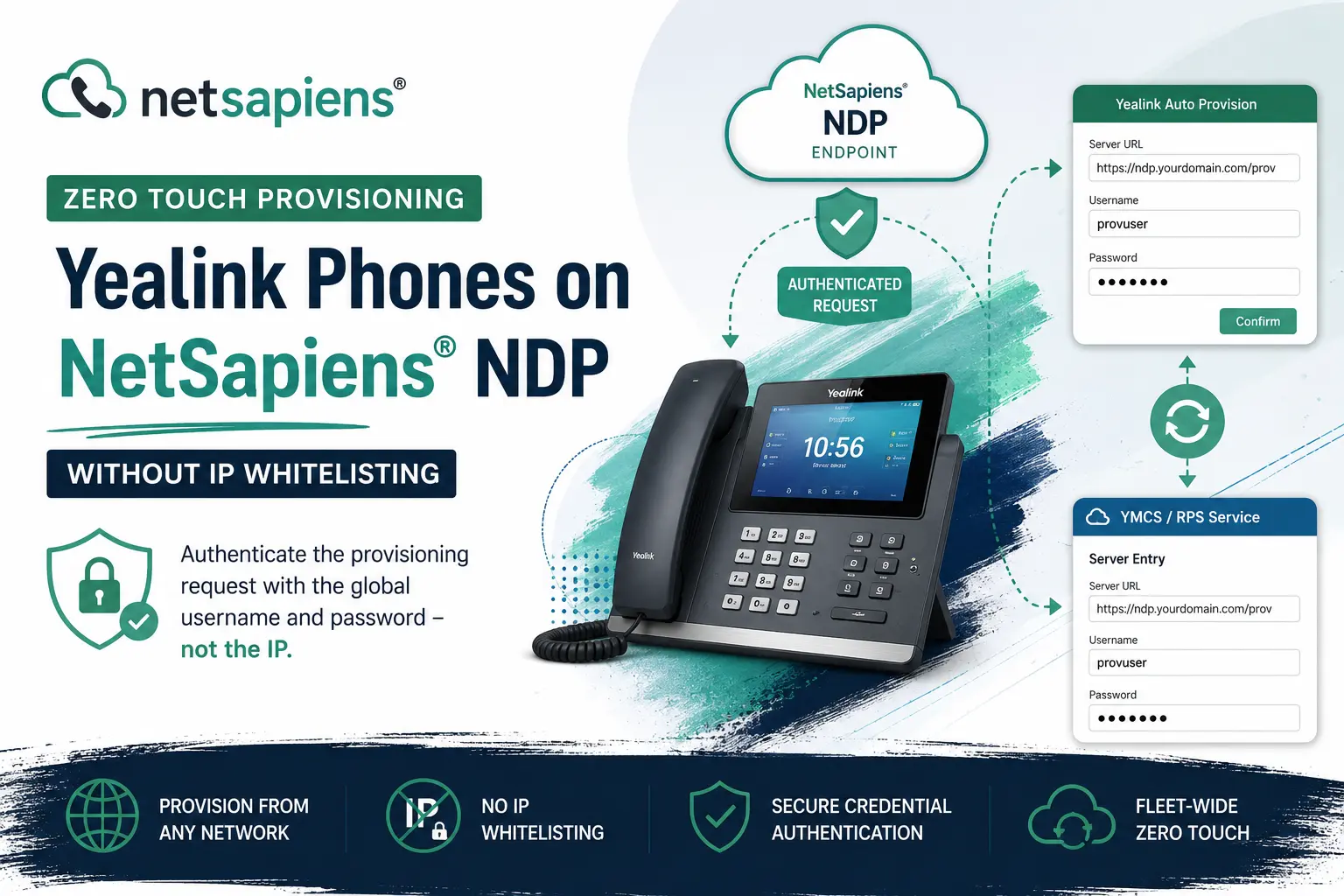
NetSapiens® NDP (NetSapiens Device Provisioning) endpoints normally trust a provisioning request based on the phone’s public IP being whitelisted. That works fine for a static-IP site, but it falls apart for phones behind dynamic residential IPs, roaming teleworkers, or any fleet where you don’t control the WAN address. You end up chasing IP changes instead of shipping phones.
The cleaner path is to stop authenticating by IP and authenticate the request itself — with the global username and password the NDP endpoint expects. Once the phone presents valid credentials, the endpoint serves the config regardless of the source IP, so no whitelisting is required. This post covers both halves of that setup: the values on the phone, and the matching values in Yealink’s cloud (YMCS / RPS Service) so redirected phones inherit them automatically. If you want the wider context on how tenant, user, and device provisioning fit together on the platform first, start with our NetSapiens® provisioning guide.
Credentials note: the screenshots below use the generic global provisioning username
provuser. Use the actual username and password for your own NDP endpoint — don’t reuse the values from any screenshot.
Method 1 — from the phone
On the phone’s web UI, go to Settings → Auto Provision. Along with the Server URL (your NDP endpoint URL), fill in the global provisioning Username and Password:
- Username:
provuser - Password: (your NDP global provisioning password)
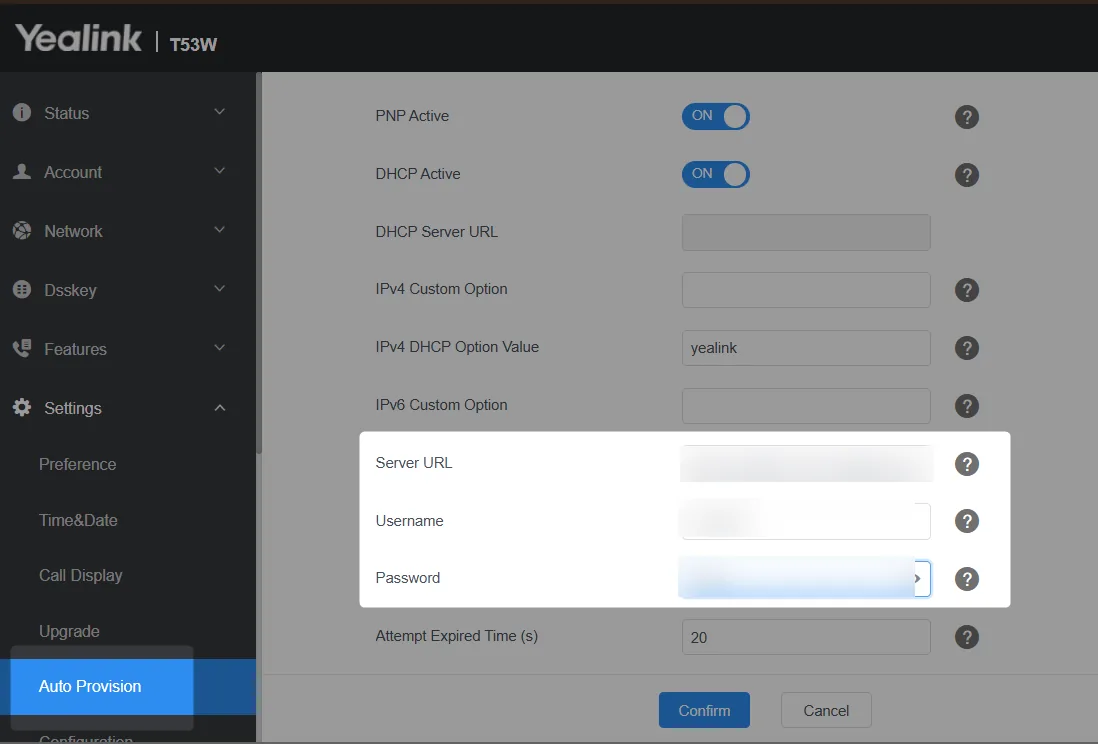
With PNP/DHCP left on and the Server URL, username, and password in place, press Confirm. The phone authenticates against the NDP endpoint and pulls its configuration — no IP whitelisting needed, because the credentials are what grant access.
This is the right approach for a one-off phone you can touch directly. For a fleet, do the same thing centrally in Yealink’s cloud so the credentials follow the phone through RPS redirection.
Method 2 — from YMCS (RPS Service)
Yealink Management Cloud Service (YMCS) and the RPS (Redirection & Provisioning Service) let you point a phone at your NDP endpoint the moment it boots, without touching the handset. The key is that the server entry in RPS must carry the same credentials, so the redirect hands the phone a URL and the username/password to authenticate with.
Add the credentials to the RPS server entry
In RPS Service → Server, add (or edit) the server that holds your NDP provisioning URL, and populate the Username and Password fields as well — not just the Server URL:
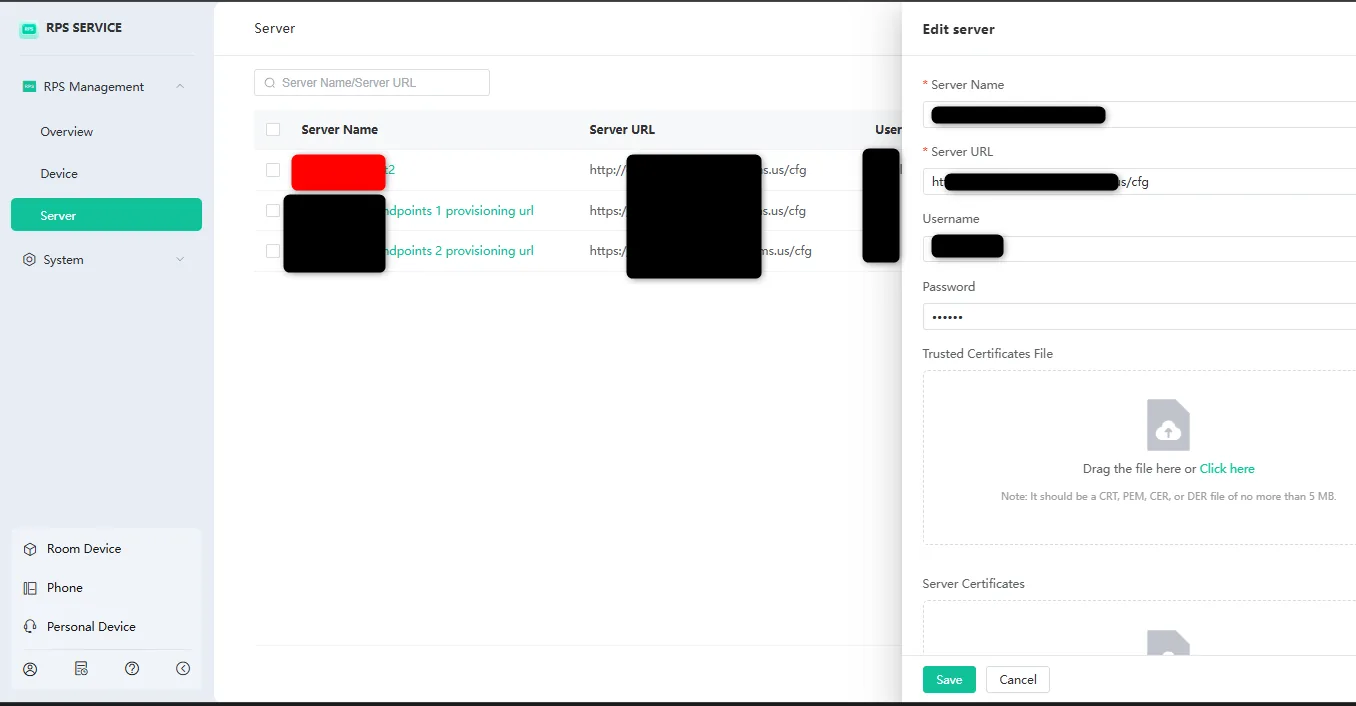
Save the server. Any phone redirected to this server entry now receives the credentials along with the URL.
Assign the server on the device
Next, in Device → Device List, add a new phone or edit an existing one (if it was already added):
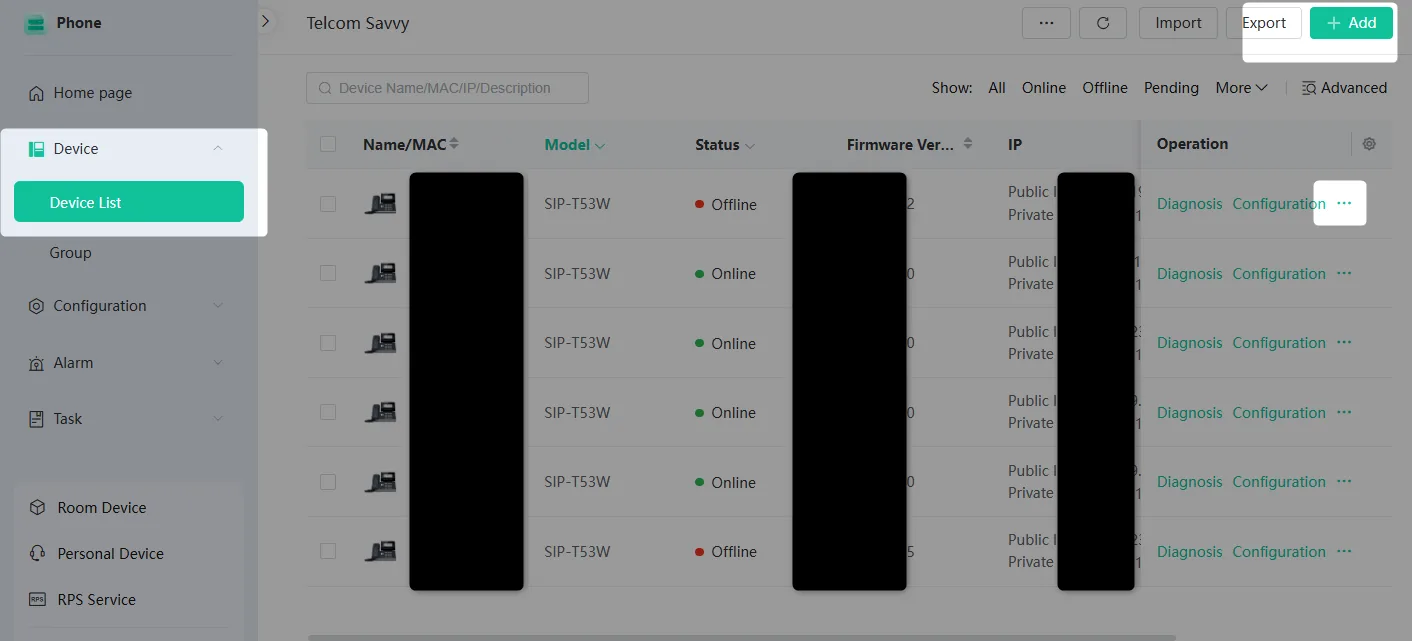
Open the device and expand Advanced Settings. Under Server Name, select the server entry you configured above — the one that contains the correct URL, username, and password:
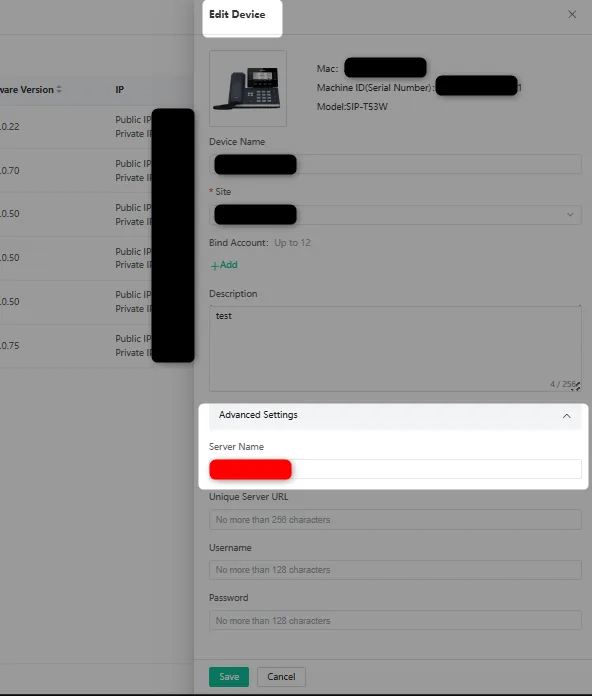
Save. On its next boot or resync, the phone contacts RPS, gets redirected to your NDP endpoint with the credentials attached, authenticates, and provisions — again, with no IP whitelisting.
Why this works
NDP endpoints accept a provisioning pull on either of two proofs: a whitelisted source IP, or valid provisioning credentials. IP whitelisting is brittle for anything that isn’t a static-IP site. Moving the proof to the credentials — set on the phone directly, or carried through RPS/YMCS — makes provisioning portable across any network the phone lands on. Keep the global provisioning password treated as a secret: rotate it if it leaks, and never publish it in customer-facing docs.
For the IP-whitelisted alternative — provisioning a static-IP device against the same endpoints server — see our walkthrough on provisioning a Grandstream ATA and building a call queue.
Independence and disclosure
VoIP Support Pro is an independent provider of support services for the NetSapiens® platform. We are not affiliated with, endorsed by, or sponsored by NetSapiens® or Crexendo, Inc. NetSapiens® is a registered trademark of Crexendo, Inc. Yealink, YMCS, and RPS are trademarks of Yealink (Xiamen) Network Technology Co., Ltd. Screenshots are used for instructional purposes; sensitive values have been redacted.