
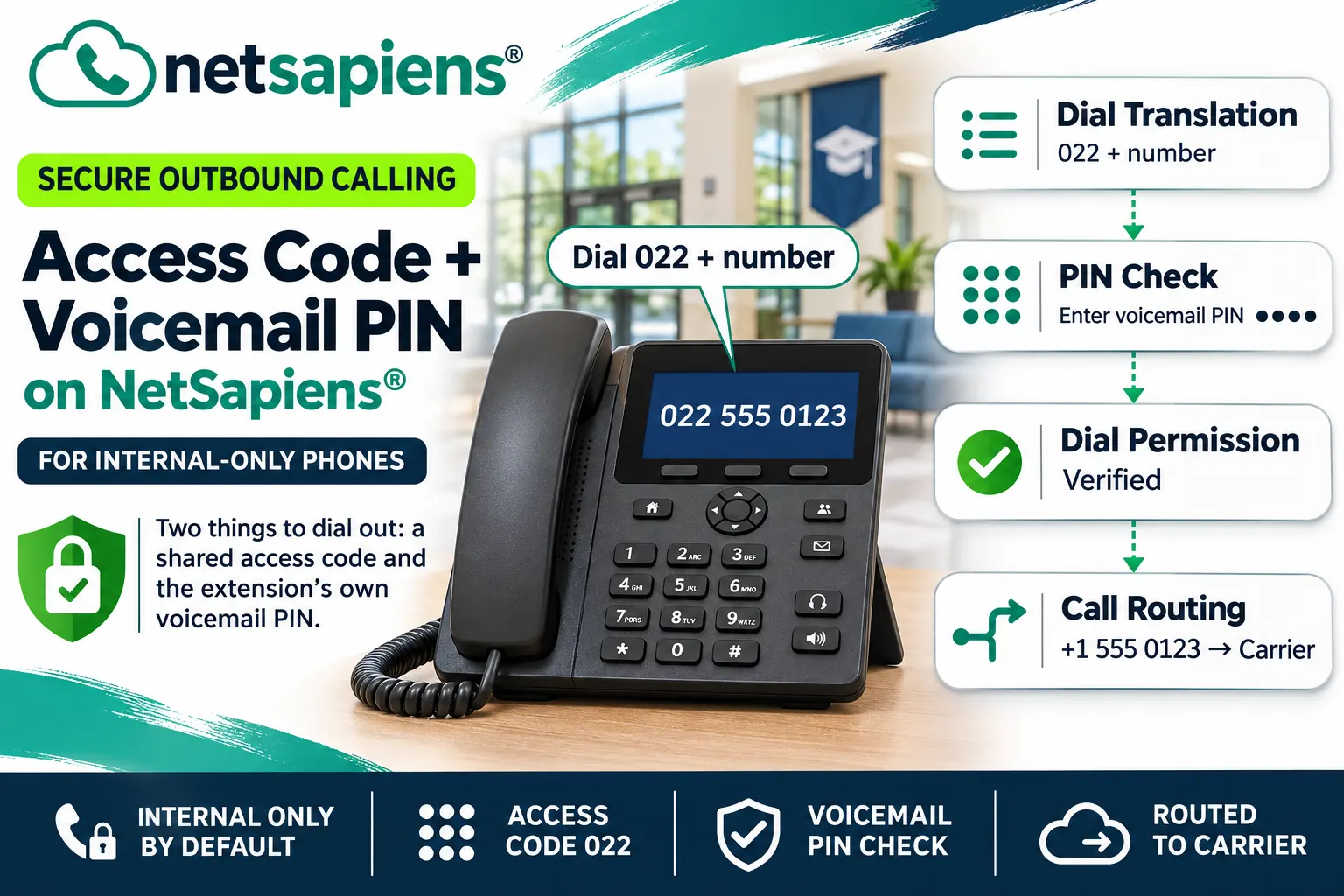
Some phones should be locked down by default but still need the occasional outside call. Think classroom phones, lobby phones, or shared handsets in a break room. The usual answer is an Internal Only dial policy — and the usual complaint, a week later, is that nobody can dial out when they legitimately need to.
This guide shows how to keep those phones restricted to internal calls and still let authorised people dial out, by asking for an access code and the caller’s voicemail PIN before the call is allowed through. Everything is done with standard NetSapiens® features — Dial Translations, Dial Permissions, and Call Routing. No custom development is needed. If you want a refresher on how match rules, translations and routes fit together first, start with our NetSapiens® dial plan cheat sheet.
Placeholder note: domain names, IP addresses, extension numbers, phone numbers and carrier names in this post (and in the screenshots) are placeholders such as
yourdomain.com,x.x.x.xandCarrier-A. Replace them with the values from your own system.
The scenario
A school wants its classroom phones to place outbound calls, but the phones are currently restricted by an Internal Only dial policy. The school also wants to make sure outsiders — or anyone who happens to walk up to a phone — cannot run up charges.
The solution is a two-factor style check at dial time:
- Something they know (1): an access code, dialed ahead of the number. In this example the code is
022. - Something they know (2): the voicemail PIN of the extension they are calling from.
Only a caller who dials the code and then enters a valid voicemail PIN will have the call completed.
How the call flow works
Here is what happens when a user dials the access code followed by a 10-digit number:
- The user dials
022followed by the 10-digit number. - Dial Translation Rule 1 matches the number, tags it with the word “verified”, and sends it to the To Connection Check PIN application.
- The system prompts the caller for the voicemail PIN of the extension.
- If the PIN is correct, the call is passed on to a second Dial Translation rule that recognises the “verified” number.
- That second rule removes the “verified” tag and prepends
1, then the Dial Permission policy permits the call. - Call Routing matches the number and sends it to the carrier connections, with the access code stripped off along the way.
Step 1: Create the Dial Translation rules
Open the Dial Translation table for your domain and add two rules.
Rule 1: Catch the access code and ask for the PIN
This rule matches any 10-digit number dialed with the 022 prefix, appends the text “verified” to the user part of the destination, and hands the call to the PIN check.
| Field | Value |
|---|---|
| Source | * |
| Destination | sip:022[2-9][0-9][0-9][2-9][0-9][0-9][0-9][0-9][0-9][0-9]@* |
| Application | To Connection Check PIN |
| Dest. Scheme Translation | [*] |
| Dest. User Translation | verified[*] |
| Dest. Host Translation | <OwnDomain> |
| Source Name Translation | <OwnCidName> |
| Source User Translation | +1<OwnCidNmbr> |
| Source Host Translation | <OwnDomain> |
| Description | 10-Digit DID test |
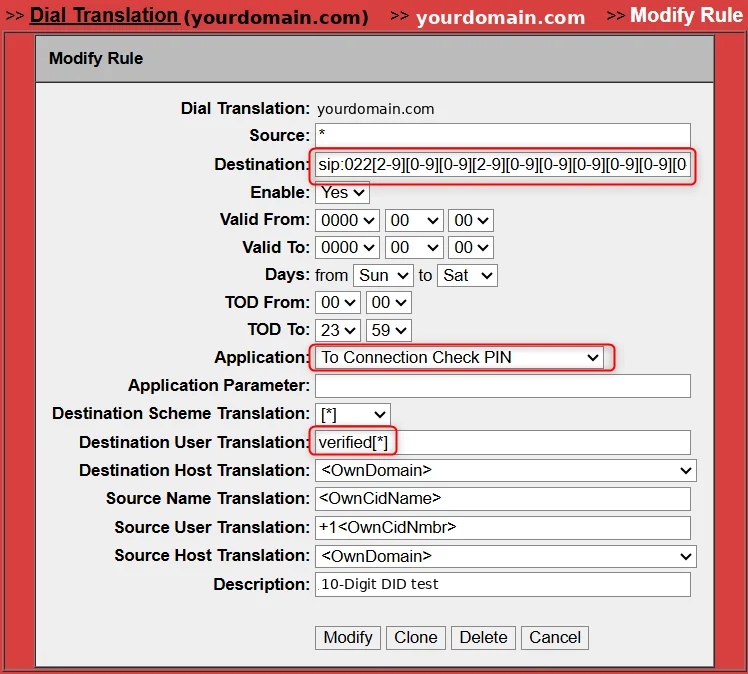
Rule 1: the Dial Translation that sends the call to the PIN check.
Rule 2: Complete the call after the PIN is verified
Once the caller enters the right PIN, the call comes back through the dial plan as “verified” plus the number. This rule recognises it, strips the “verified” tag, prepends 1, and sends the call on to the carrier.
| Field | Value |
|---|---|
| Source | * |
| Destination | verified022[2-9][0-9][0-9][2-9][0-9][0-9][0-9][0-9][0-9][0-9] |
| Application | To Connection |
| Dest. Scheme Translation | sip: |
| Dest. User Translation | 1[!!!!!!!!*] |
| Dest. Host Translation | <OwnDomain> |
| Source Name Translation | [*] |
| Source User Translation | [*] |
| Source Host Translation | <OwnDomain> |
| Description | International Validated Pin |
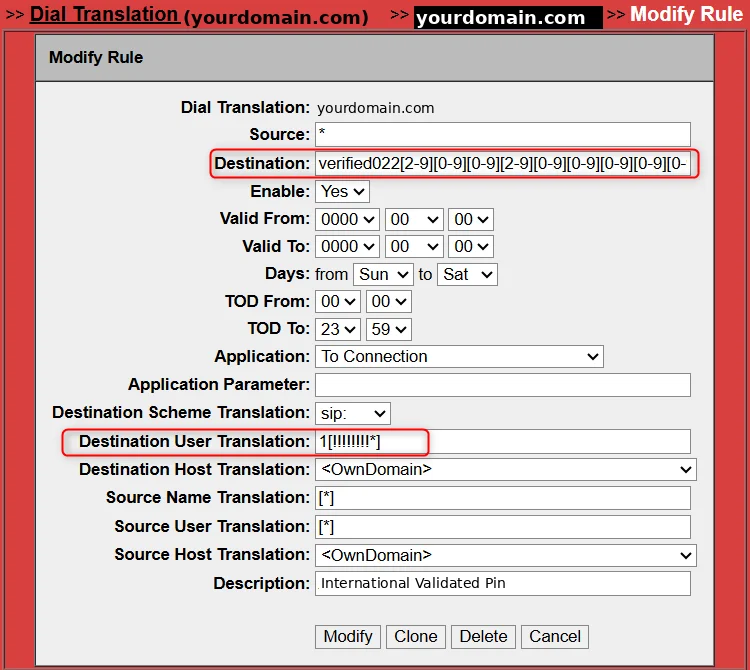
Rule 2: the Dial Translation that finishes the call after PIN verification.
Tip: the eight exclamation marks in the translation strip the eight characters of the word “verified”. If you choose a different word, adjust the number of
!characters to match its length.
Step 2: Add the Dial Permissions
Phones with an Internal Only dial policy can only reach destinations that are explicitly permitted. Open the Internal Only dial permission list and add two entries, one for each stage of the call:
sip:verified022[2-9][0-9][0-9][2-9][0-9][0-9][0-9][0-9][0-9][0-9]@*— after the PIN has been verified.sip:1022[2-9][0-9][0-9][2-9][0-9][0-9][0-9][0-9][0-9][0-9]@*— after the number has been rewritten with the leading1.

The Internal Only policy with the new permit entries, alongside the default 911 and short-extension entries.
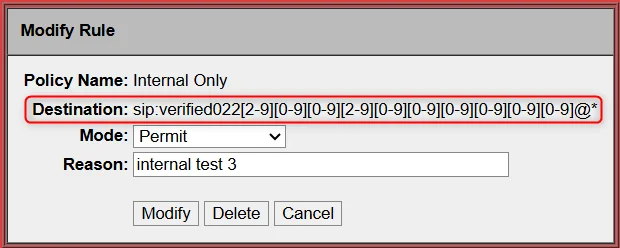
Permission entry for the “verified” stage.
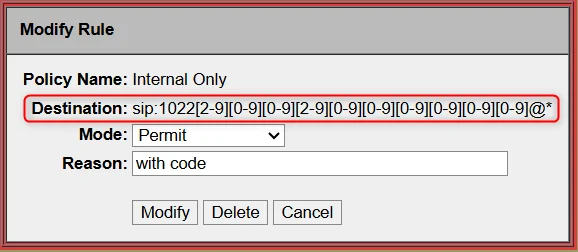
Permission entry for the final dialed number.
Keep the existing sip:911@* entry exactly where it is. Adding access-code rules is never a reason to touch emergency routing — see our E911 guide for NetSapiens® for why that rule must always survive dial-plan edits.
Step 3: Add the Call Routing
Next, tell NetSapiens® where to send the call. Create a route that matches the rewritten number:
- Source:
sip:*@yourdomain.com - Destination:
sip:1022??????????@*
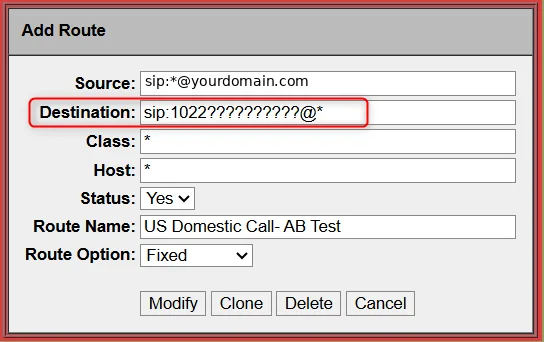
The route that matches calls dialed with the access code.
Edit the connection’s User column so that the access code is removed before the call leaves for the carrier and the number goes out in the standard +1 format. In our example, +1[!!!!*] strips the first four characters (1022) and adds the +1.
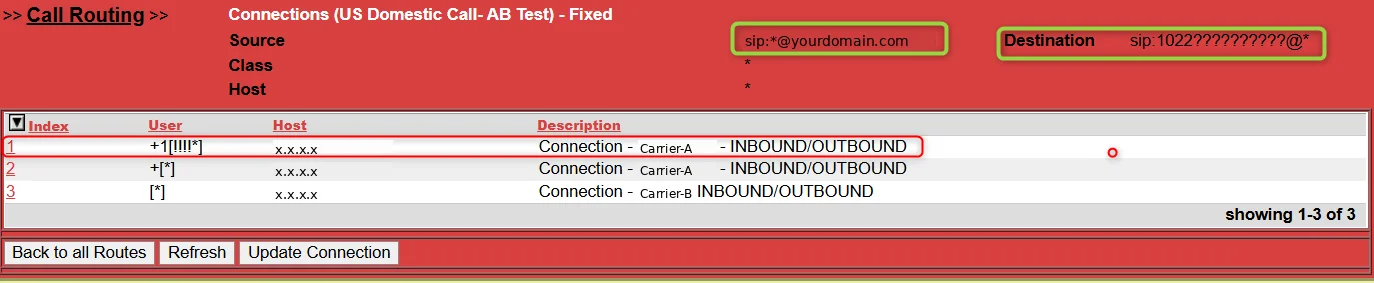
The route’s connections, with the user pattern applied to the first connection.
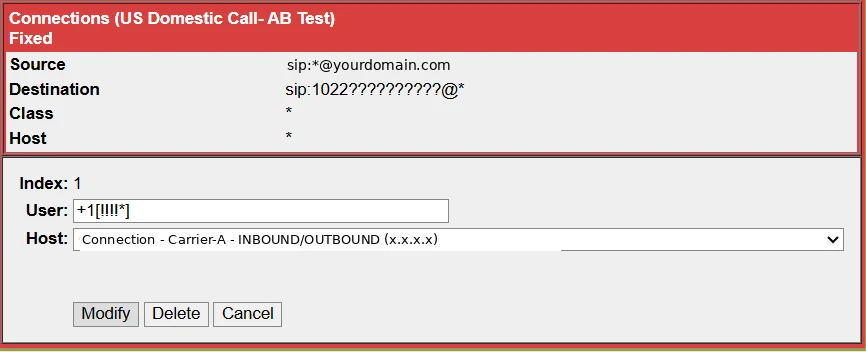
Editing the connection’s User column.
Step 4: Test and read the call trace
Place a test call from an extension: dial the access code, then the number, and enter the voicemail PIN when prompted. If anything does not behave as expected, the NetSapiens® call trace shows exactly which rule matched at every stage. Below is a cleaned-up and shortened trace from a successful test call.
ApplyDialPlan(0,1024) Last Plan <yourdomain.com>
  caller <1XX@yourdomain.com>
  searchedBy (from=<sip:1XX@yourdomain.com>,
              to=<sip:0225552345678@yourdomain.com>)
  matchedTo (sip:022[2-9][0-9][0-9][2-9][0-9][0-9][0-9][0-9][0-9][0-9]@*)
  selectedRule(10-Digit DID test)
  apps = <To Connection Check PIN>
  To-URI -> sip:verified0225552345678@yourdomain.com
CheckDialPolicy(0) <Internal Only>
  match <sip:verified022[2-9][0-9][0-9][2-9][0-9][0-9][0-9][0-9][0-9][0-9]@*>
  (internal test 3) - (permit)
CheckRegistrar INVITE from x.x.x.x:xxxxx
  - Found Device (sip:1XX@yourdomain.com)
LookupResponder(To Connection Check PIN)
  prompt: phrase-get-password.wav
  AccountPin - PIN entered correctly
ApplyDialPlan(0,1023) Last Plan <yourdomain.com>
  matchedTo (verified022[2-9][0-9][0-9][2-9][0-9][0-9][0-9][0-9][0-9][0-9])
  selectedRule(International Validated Pin)
  To-URI -> sip:10225552345678@yourdomain.com
CheckDialPolicy(0) <Internal Only>
  match <sip:1022[2-9][0-9][0-9][2-9][0-9][0-9][0-9][0-9][0-9][0-9]@*>
  (with code) - (permit)
LoadRoute
  select <US Domestic Call- AB Test>
  (sip:*@yourdomain.com)(sip:1022??????????@*)
  with 3 fixed connections.
Reading the trace from top to bottom, you can see each stage of the flow:
- The dialed number matches Rule 1 and is sent to the PIN check, with “verified” added.
- The Internal Only policy permits the “verified” number so the call can reach the PIN prompt.
- The caller is prompted for a password and the trace confirms the PIN was entered correctly.
- The call matches Rule 2, is rewritten to start with
1, and is permitted by the second dial permission. - The route is loaded and the call goes out through one of the configured connections.
If a trace shows a different rule winning than the one you expect, our guide to NetSapiens® dial plan and match rule troubleshooting walks through the precedence problems that usually cause it.
Troubleshooting checklist
- Call is rejected immediately: check that both dial permission entries exist in the Internal Only policy.
- No PIN prompt: confirm Rule 1 is enabled and that its destination pattern matches the digits dialed.
- PIN accepted, but the call fails: check Rule 2’s destination pattern, then check that the route destination matches the rewritten number.
- Carrier rejects the number: check the connection’s User column pattern so the number goes out in the format your carrier expects.
- PIN is never accepted: make sure the extension has a voicemail PIN set.
Security recommendations
- Use an access code that is not easy to guess, and change it periodically.
- NetSapiens® suggests replacing the word “verified” with another word of your choosing for extra protection. Remember to update the number of
!characters in Rule 2 if you do. - Because the voicemail PIN acts as the password, make sure users have changed it from any default.
NetSapiens® documents the same approach for international (011) calls in its guide on securing your NetSapiens® system.
What we run for resellers
Dial plans, permissions and routing get complicated quickly, and a restricted-phone policy is exactly the kind of change that breaks something else three months later. Secure calling policies like this one are part of the day-to-day dial-plan work we do under our white-label Tier 1–4 NetSapiens® support for resellers. For the wider operational picture, the NetSapiens® support and operations page is the pillar. Book a free 30-minute assessment to talk through your requirements — no obligation, just a straight answer on how to design, implement and troubleshoot secure calling on your platform.
Related reading
- NetSapiens® Dial Plan Cheat Sheet: Rules & Patterns
- NetSapiens® Dial Plan & Match Rule Troubleshooting
- E911 on NetSapiens®: Kari’s Law & RAY BAUM’s Act
- More guides at the VoIP Support Pro blog
Sources
Independence and disclosure
VoIP Support Pro is an independent provider of support services for the NetSapiens® platform. We are not affiliated with, endorsed by, or sponsored by NetSapiens® or Crexendo, Inc. NetSapiens® is a registered trademark of Crexendo, Inc. Screenshots are used for instructional purposes; domain names, IP addresses, extension numbers and carrier names have been replaced with placeholders.