
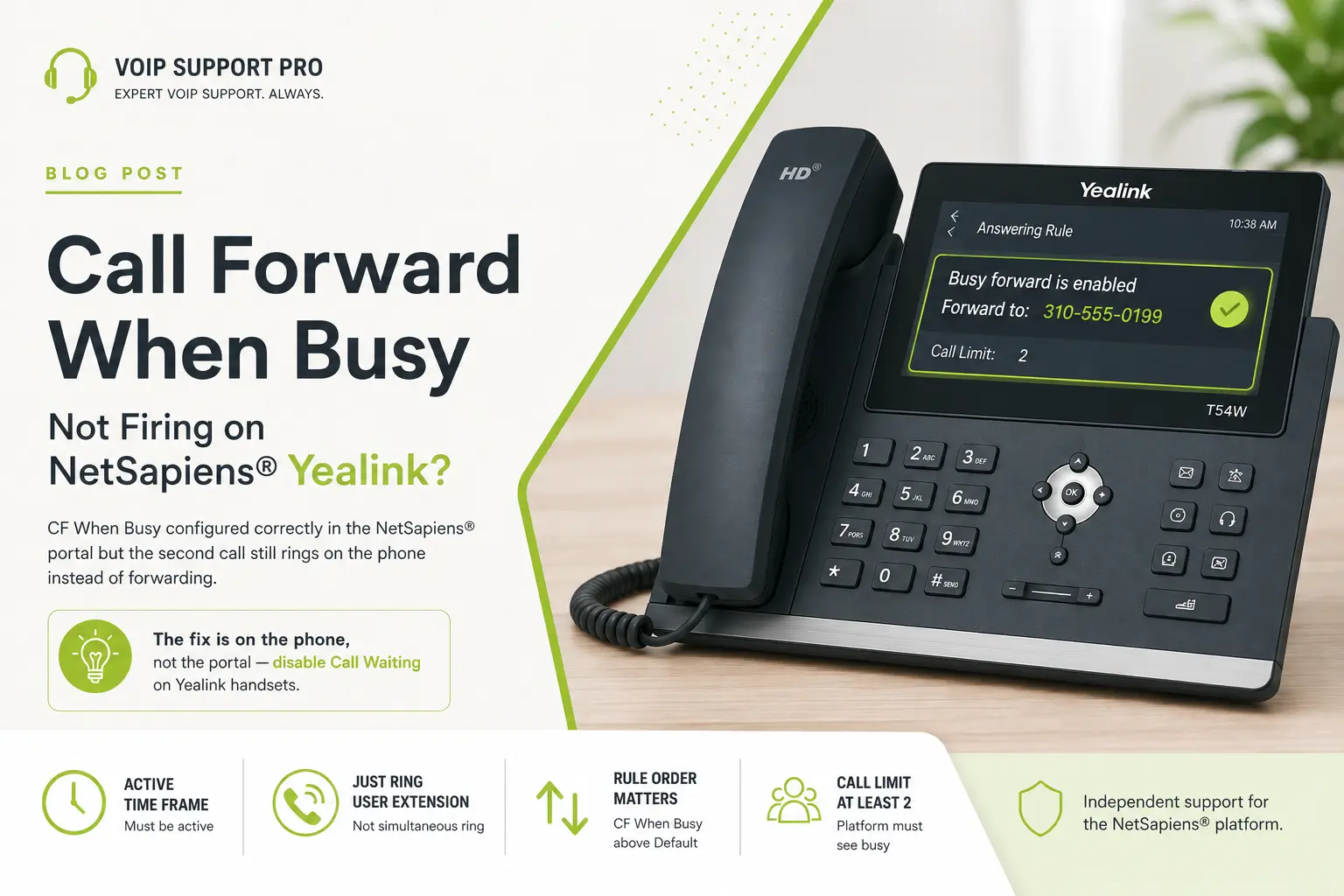
Call Forward When Busy is one of the highest-frequency tickets in NetSapiens® support work, and it has a specific failure mode that eats hours: the answering rule is configured correctly in the portal, the user has re-tested three times, and the second call still rings on their phone instead of forwarding. The portal shows the rule as active. The user is convinced the platform is broken.
The platform is not broken. The problem is that Call Waiting on the physical IP phone is doing exactly what it was designed to do — hold the second call on-screen — which prevents the phone from ever returning a busy signal to the platform. And CF When Busy only fires when the platform sees the user as busy. This post walks the full diagnosis, portal-side and phone-side, using a real support scenario.
The scenario
User at extension 140 wants a Call Forward When Busy rule that sends calls to extension 989 when they are already on a call. The rule is set up in the portal. When the user is on a call and a second call comes in, the second call rings on their phone (as a waiting call) instead of forwarding to 989. Nothing about the rule is broken. Everything about the phone is fighting it.
Start with the portal side — four conditions
Before touching the phone, verify all four portal-side conditions are met. If any one of them is wrong, no amount of phone-side fixing will help. The NetSapiens® documentation on answering rule options states the “When Busy” condition explicitly:

The critical line: “only an available option when ‘just ring user’s extension’ is selected and not when ‘simultaneous ring’ is selected.” This is the first thing to check.
Condition 1: Time Frame is Active, not Disabled
Open the user’s Answering Rules tab. The CF When Busy rule lives inside a Time Frame (custom or Default). If the Time Frame column shows Disabled in a grey badge instead of Active in a green badge, the rule will silently never fire — no error, no warning.
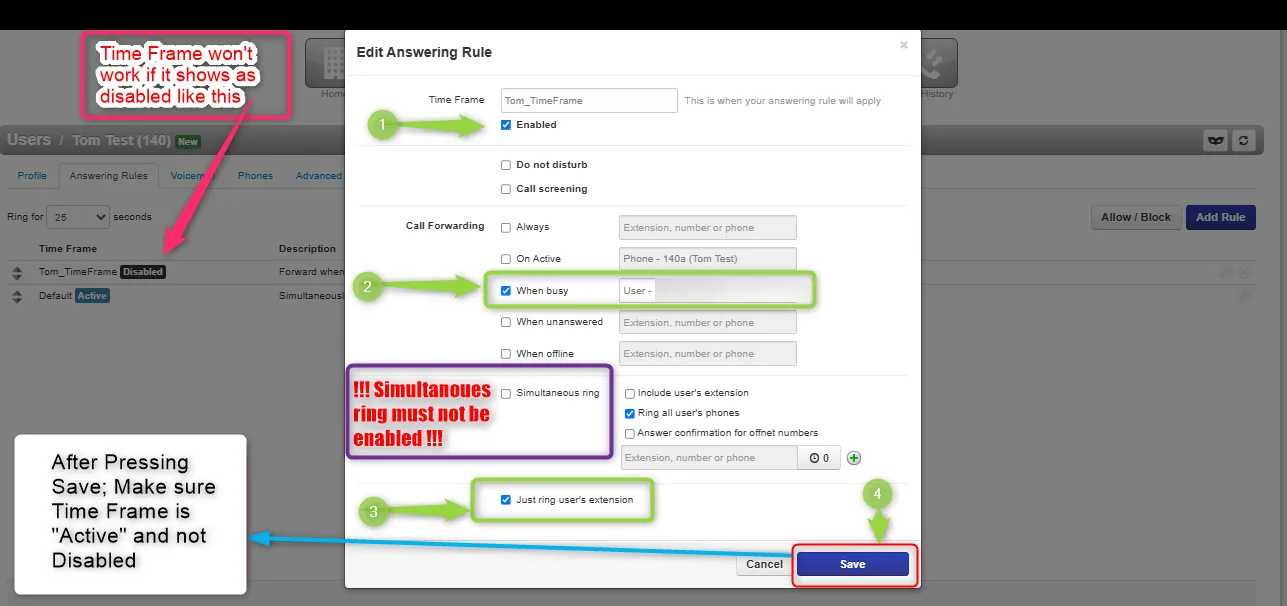
Condition 2: “Just ring user extension” is checked
In the same rule dialog, verify Just ring user’s extension is selected at the bottom of the Call Forwarding section. This is not a stylistic choice — it is a hard requirement. Simultaneous Ring rings all of the user’s devices in parallel, so the platform has no single endpoint to declare busy. CF When Busy is meaningless in that scenario and the rule will not fire.
Condition 3: Rule ordering — CF When Busy sits above Default
NetSapiens® evaluates answering rules top-down and uses the first match. If the Default rule sits above CF When Busy, Default matches every incoming call and forwarding never happens.

If your CF When Busy rule is below Default, drag it above and save. The order in the list is the order of evaluation.
Condition 4: Call Limit is at least 2
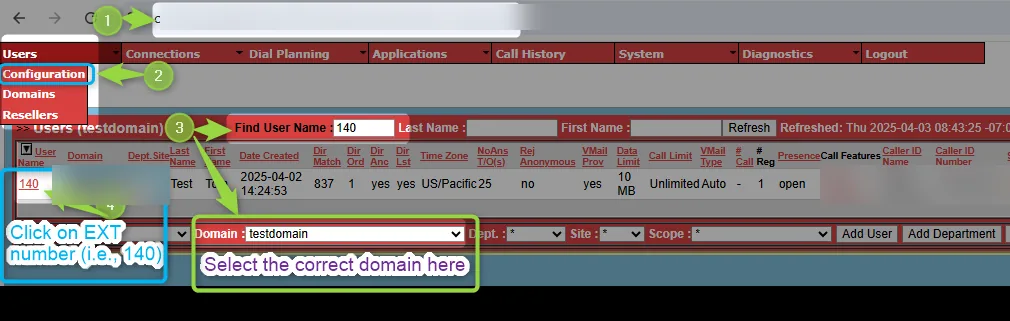
This is the least obvious condition. Log into the NMS core module, then Users > Configuration, filter by the extension, and open the user.
Scroll to the Call Limit field. Change it from 1 or Unlimited (default) to a minimum value of 2.
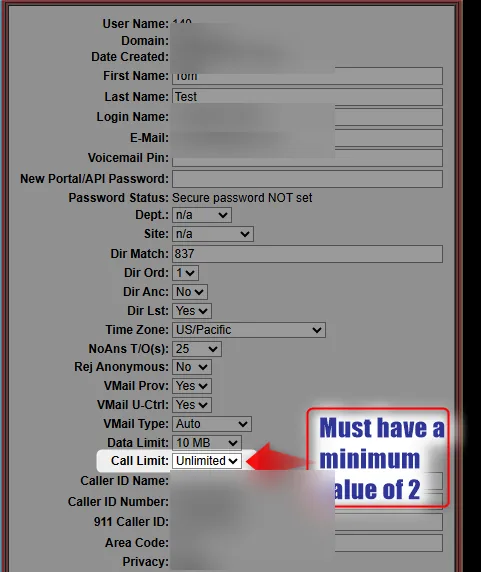
The reason this matters: with a Call Limit of 1, the platform never considers the user “busy” in the sense that triggers CF When Busy — the first call fills the limit and subsequent calls simply hit the default fall-through logic. With a Call Limit of 2, the second incoming call finds an occupied first slot, marks the user as busy, and the CF When Busy rule fires.
After portal side is correct — test in normal conditions
With those four conditions met, place a test call to the user’s extension. While that call is active, place a second call to the same extension. If everything is working:
- The second call rings at extension 989 immediately.
- The first call is not interrupted.
If the second call rings at 989, the platform side is done. In most environments — softphones, virtual clients, deskphones without local Call Waiting — this is enough. But if the user is on a physical IP phone with Call Waiting enabled, one more thing has to happen.
The special scenario — Yealink Call Waiting intercepting the forward
Here is the trap. The user’s Yealink T54W screen shows “Busy forward is enabled” — proof the phone knows about the forwarding rule.
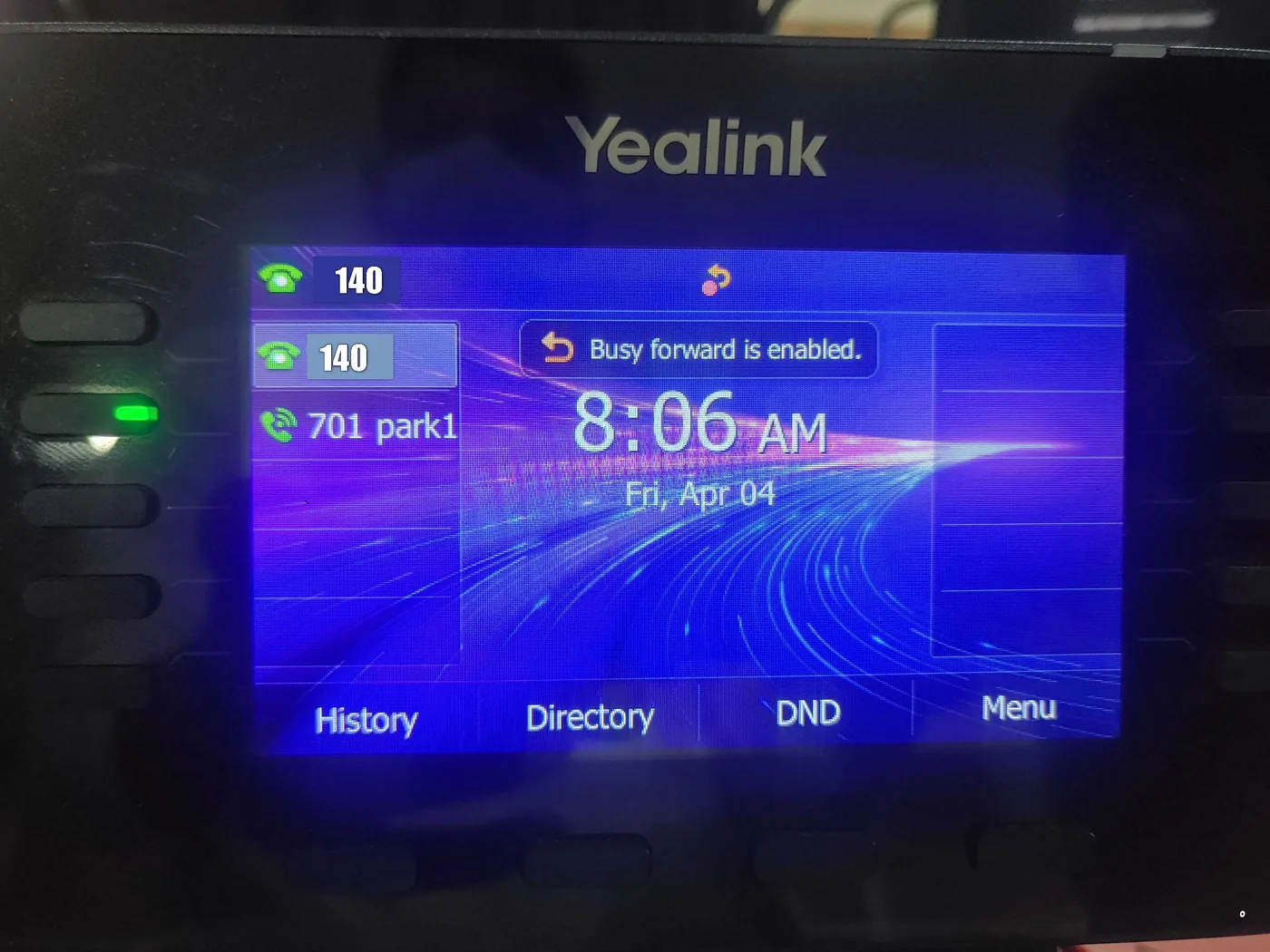
Everything looks correct. The user is on a call. A second call comes in — and instead of forwarding to 989, it appears on the phone’s screen as an incoming waiting call. The forward never fires.
The cause is the phone’s local Call Waiting feature. When Call Waiting is enabled, the phone answers the SIP INVITE for the second call itself — with a 180 Ringing — and holds it on-screen. From the platform’s perspective, the second call was accepted by the phone. The user is not “busy” as far as the platform can tell. CF When Busy has no signal to fire on.
The fix is on the phone, not the portal. On the Yealink, go to Menu > Features > Call Waiting.
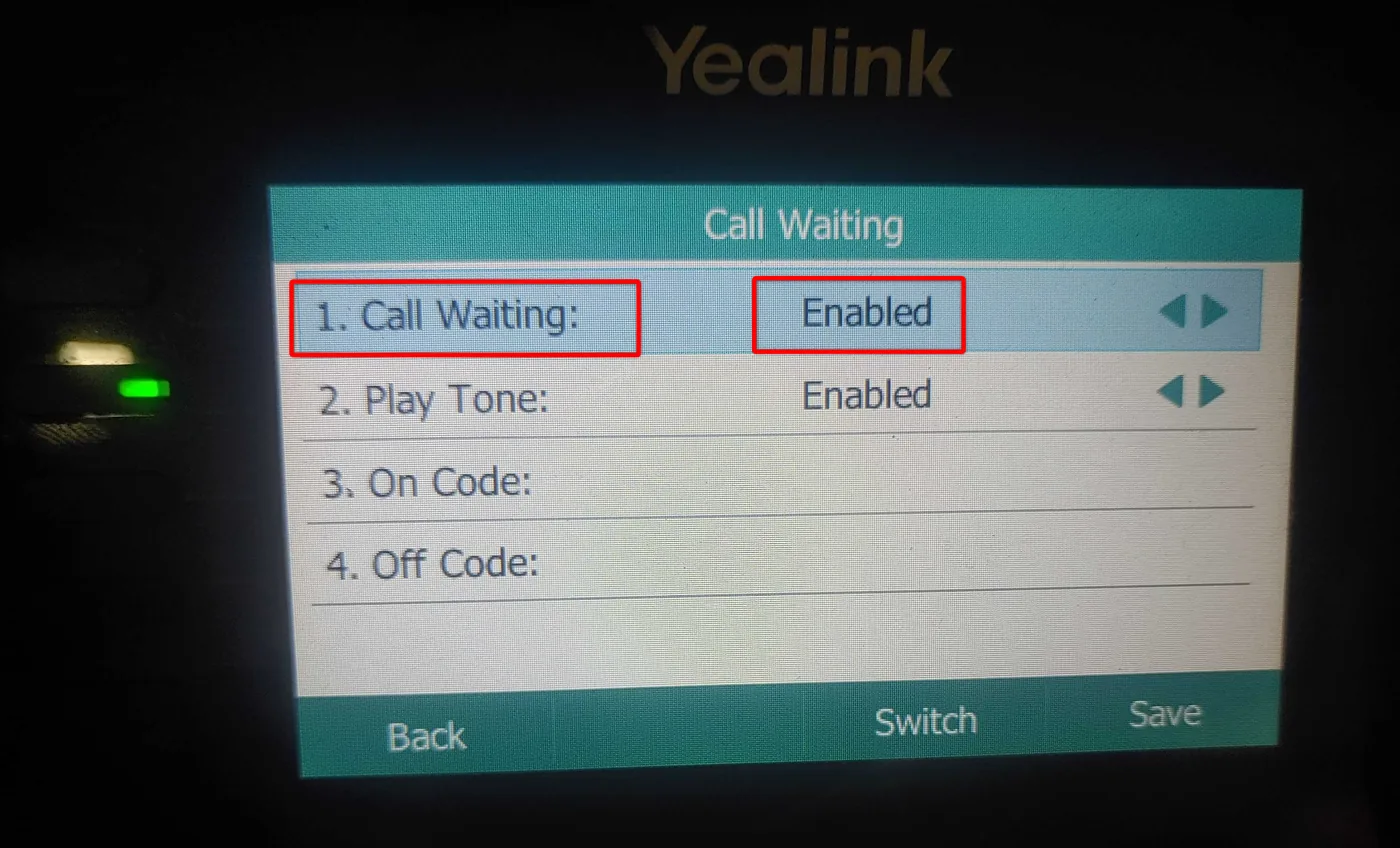
Change Call Waiting from Enabled to Disabled and press Save. The screen should now show:
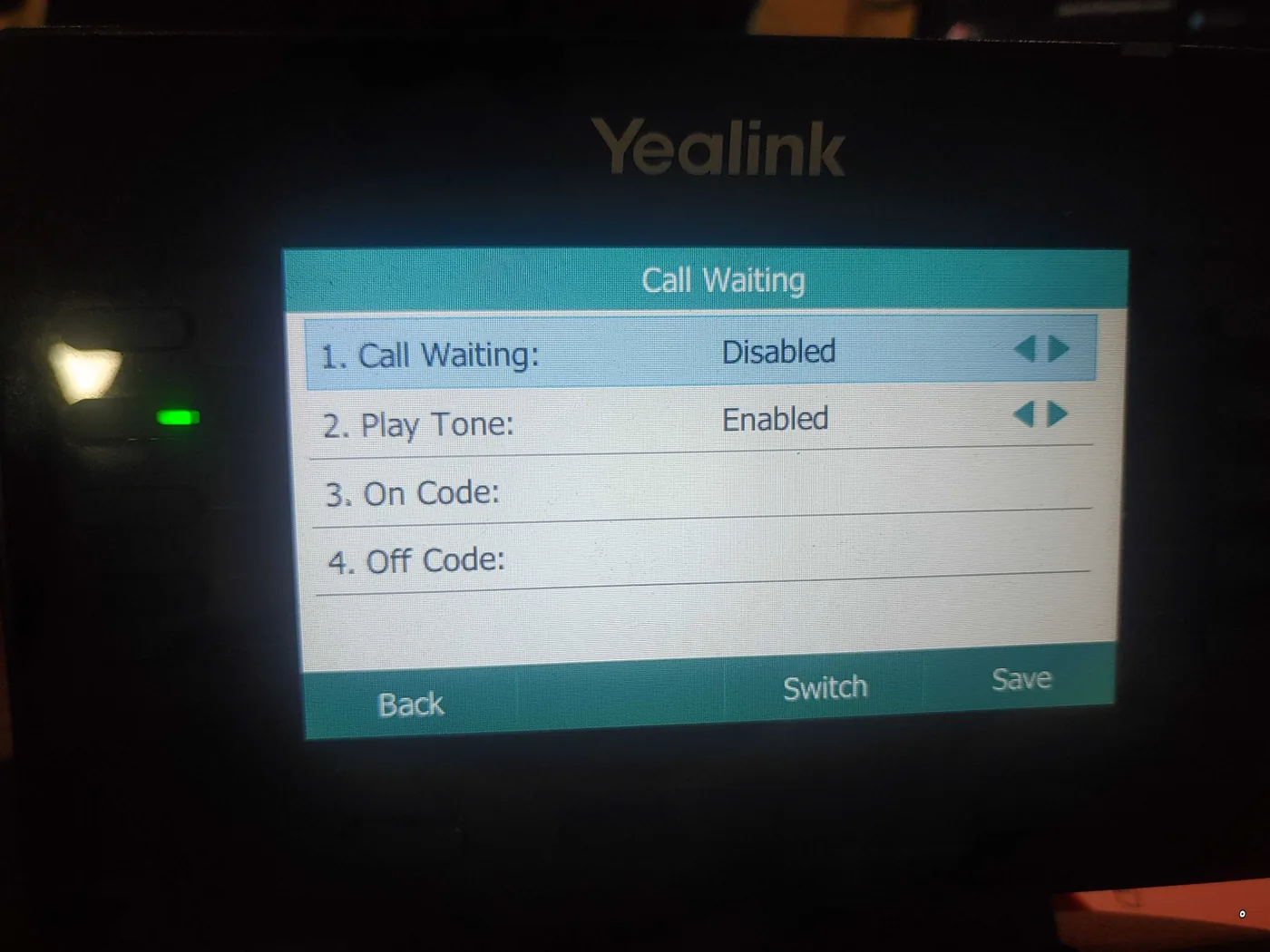
Test again. The second call should now forward to 989 as expected — the phone returns a busy signal to the platform, the platform matches CF When Busy, and forwarding fires.
Why this trap exists
Call Waiting is a local phone feature that predates modern platform-side call handling by decades. It was designed for analog phones where the second call had nowhere else to go. On a modern SIP deployment sitting behind a feature-rich platform like NetSapiens®, Call Waiting on the phone competes with — and often wins over — the platform’s answering rules. This is not a bug in either NetSapiens® or Yealink; it is a design collision between two features that both want to handle the same event.
The general rule for NetSapiens® deployments: let the platform handle call handling. Disable Call Waiting on the phone by default in your provisioning template, and rely on the platform’s answering rules for everything the user actually cares about.
Fleet-scale fix — do this via provisioning override
Manually disabling Call Waiting on individual phones works for a one-off ticket, but drifts over time as devices are replaced, factory-reset, or added. For any deployment with more than a handful of Yealink phones, disable Call Waiting via provisioning override in NDP or the endpoint manager:
features.call_waiting.enable = "0"Apply this at the domain-defaults level so every Yealink under the domain inherits it. New phones get the correct configuration on first boot. Factory-reset phones get it again on the next provisioning cycle.
For other brands, the equivalent overrides:
- Poly (Polycom):
voIpProt.SIP.callWaiting.enable = "0" - Cisco (MPP series):
Call_Waiting_Serv_1_ = "No" - Grandstream (GXP/GRP):
P1252 = "0"(per-account)
The parameter name changes but the intent does not. Disable local Call Waiting so the platform’s CF When Busy rule can fire.
When to use CF Always instead
If disabling Call Waiting is not acceptable for a specific user — some users genuinely rely on Call Waiting for their normal calling — the workaround is to use CF Always to a Call Queue or a personal voicemail-like handling group instead of CF When Busy. CF Always forwards every incoming call before it reaches the phone at all, so Call Waiting on the handset never enters the picture. The trade-off is that the user’s first call also forwards, which is usually not what they want. In practice, disabling Call Waiting is the better fix in ~95 % of cases.
Verification checklist
Before closing the ticket, confirm all six:
- Time Frame containing the rule shows Active, not Disabled.
- “Just ring user extension” is selected in the answering rule.
- CF When Busy rule sits above the Default rule.
- Call Limit for the user is set to a minimum of 2 in the NMS core.
- Call Waiting on the physical phone is Disabled (or overridden via provisioning).
- Two-call test: second incoming call rings the forward target, does not hold on the phone screen.
Six conditions to check. Miss any one and the user reopens the ticket the next day.