
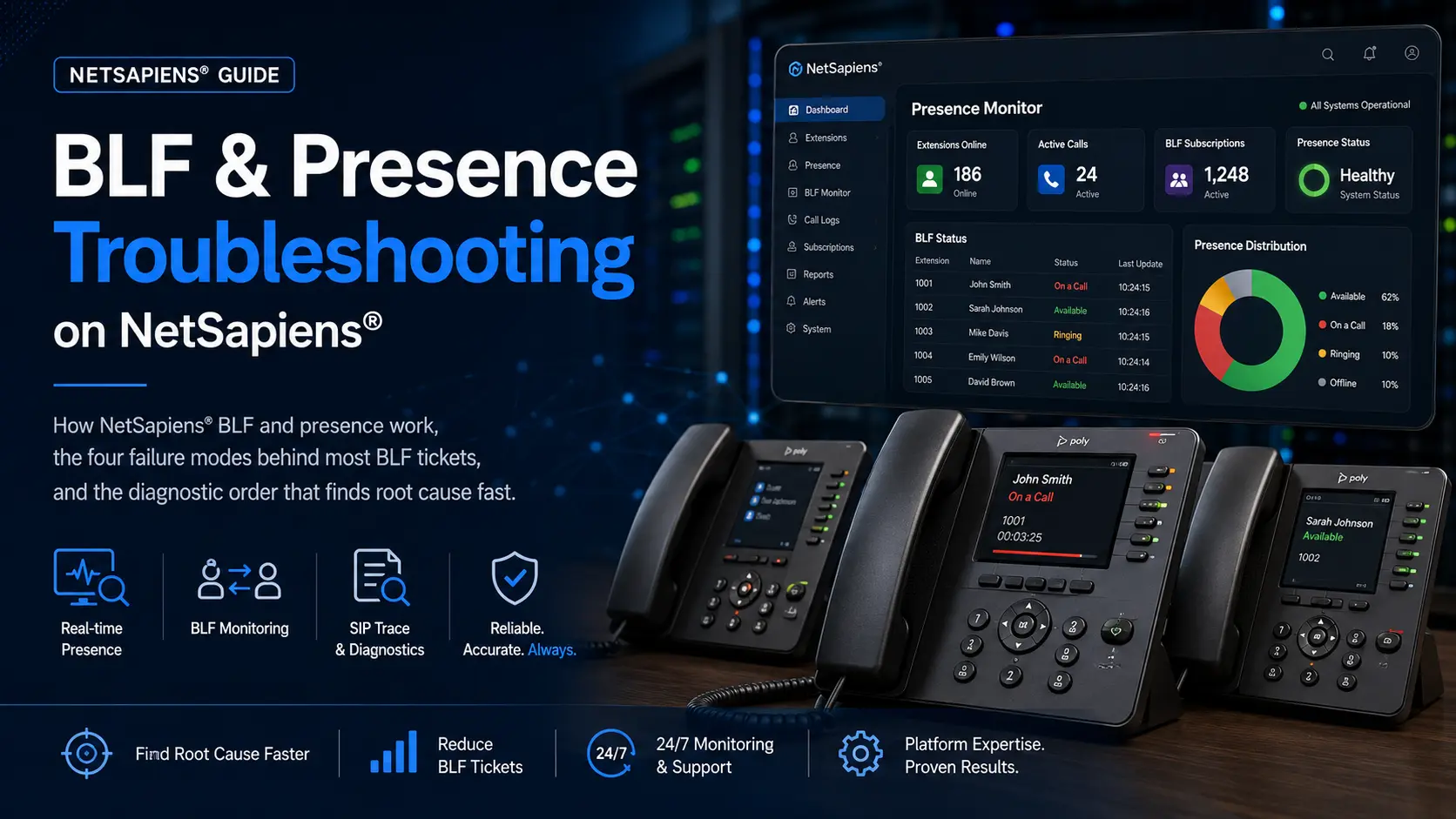
Busy Lamp Field (BLF) tickets are the perfect storm: every executive wants to see when their assistant is on a call, every assistant wants to know when the executive is free, the LED on the phone is either green when it shouldn’t be or red when nobody’s busy — and the cause is buried under three layers of SIP SUBSCRIBE/NOTIFY behavior that most engineers never had to learn. This is the structured way to debug BLF and presence on NetSapiens®: how the subscriptions work, the four failure modes that explain most tickets, and the diagnostic order that gets you from “the lamp is stuck” to a fix without breaking anything else.
How BLF actually works on the wire
BLF is a SIP dialog-info subscription. When an extension wants to monitor another extension:
- The watching endpoint sends a SUBSCRIBE for
dialog-infoto the platform, naming the watched extension’s URI. - The platform validates the watcher has permission to subscribe to that dialog state.
- The platform returns a 200 OK, then immediately sends a NOTIFY with the current state — usually
terminated(idle) for an extension not on a call. - The subscription stays open. Every time the watched extension’s dialog state changes (someone calls them, they hang up, they put a call on hold), the platform sends a fresh NOTIFY with the new state.
- Every ~10 minutes (or whatever Expires header was negotiated), the watcher re-SUBSCRIBEs to refresh the subscription.
The lamp on the phone reflects whatever the most recent NOTIFY said. If the watcher never gets a NOTIFY, the lamp shows nothing. If the watcher gets the wrong state, the lamp lies.
The four failure modes
1. Subscription never establishes
Symptom: BLF is configured on the phone but the lamp stays off (or shows the manufacturer’s default error state, which on Polycom is usually “X”).
Diagnostic: pull a SIP trace and look for the SUBSCRIBE from the watcher. If there’s no SUBSCRIBE in the trace, the phone never tried to subscribe. If there’s a SUBSCRIBE but the platform returns 4xx, the subscription was rejected.
Common causes:
- 403 Forbidden: the watcher doesn’t have permission. NetSapiens® has tenant-level and extension-level controls for who can subscribe to what. Check the extension’s permission set for “Allow subscriptions.”
- 404 Not Found: the watched extension URI is wrong on the phone config. BLF keys configured manually often have typos in the URI; provisioned phones inherit the URI from the platform — verify provisioning rendered the right value.
- 401 Unauthorized: the phone’s auth credentials don’t match the registered extension. The phone is registered, but the SUBSCRIBE is authenticated separately on some firmware versions.
2. Subscription establishes, but no NOTIFY ever arrives
Symptom: BLF appears in the platform’s subscription table, but the lamp shows idle (or “no state”) regardless of whether the watched extension is on a call.
Diagnostic: SIP trace shows the SUBSCRIBE getting a 200 OK, but no NOTIFY follows. Wait through one call on the watched extension and confirm no NOTIFY is sent.
Common causes:
- Dialog-info package not enabled on the watched extension. On some NetSapiens® versions, the dialog-info event package is per-extension-feature. Verify it’s enabled in the extension’s feature set.
- Tenant isolation rules blocking cross-tenant subscriptions. If watcher and watched are in different tenants and tenant isolation is enforced, NOTIFYs are dropped silently.
- Platform-side subscription cleanup. If the platform incorrectly believes the subscription was terminated (e.g., due to a network glitch on the SUBSCRIBE/200 OK exchange), it stops sending NOTIFYs.
3. NOTIFYs arrive but show wrong state
Symptom: the lamp is red when nobody is on a call, or stays green during a call.
Diagnostic: pull a trace during a known call. Look at the NOTIFY body XML — it contains <state> values that map to the lamp:
<dialog-info ...>
  <dialog id="...">
    <state>confirmed</state>
    <local>
      <identity>sip:1001@example.com</identity>
    </local>
  </dialog>
</dialog-info>
confirmed = on a call (lamp red on most phones). terminated or no dialog element = idle (lamp green or off). early = ringing (lamp blinking on phones that support that state).
Common causes:
- Multiple parallel dialogs. When the watched extension is on a call and has another incoming call, multiple dialogs exist simultaneously. The NOTIFY contains both. Most phone firmwares show the “busiest” state correctly, but older firmware may show only the first or last dialog and get the lamp wrong.
- Stale subscription not refreshed. If the watcher missed a refresh window, the platform may show the watcher in a state matching an old call. Reload the phone to force a fresh SUBSCRIBE.
- Hold/transfer scenarios. Some platform versions emit
confirmedstate during a transfer attempt even after the original call ended. Check the trace for re-INVITE messages around the time the lamp got stuck.
4. Subscription works but breaks under load
Symptom: BLF works fine for the first 50 lamps configured but breaks for the 51st. Or BLF works during the day and breaks after every overnight idle period.
Common causes:
- Per-extension subscription limit. NetSapiens® enforces a maximum number of inbound subscriptions per extension. If 60 watchers subscribe to extension 1000’s BLF and the limit is 50, the 51st gets rejected silently. Check tenant-level configuration for the subscription cap.
- Phone-side subscription limit. Polycom phones have a maximum number of BLF keys per phone (varies by model). Yealink T-series have similar. Beyond the model’s limit, additional BLF keys configure but never establish.
- Subscription expiry not refreshing. Phones should re-SUBSCRIBE before the Expires window closes. Network instability or NAT pinhole rebinding can drop the refresh. Lower the Expires window on the platform side (e.g., 3600 → 900) to force more frequent refresh.
The diagnostic order
When a BLF ticket lands, work in this order:
- Confirm the lamp configuration. What URI is the BLF key set to monitor? Is it the right URI? Is the phone provisioning fresh or stale?
- Pull the SIP trace. Look for SUBSCRIBE from the watcher and any 4xx response.
- Check the platform’s subscription table. Is the subscription active on the platform’s side?
- Trace through a known call on the watched extension. Is a NOTIFY emitted?
- Inspect the NOTIFY XML. Does the state match the actual call state?
- Test with a fresh subscription. Reload the watching phone and watch the SUBSCRIBE/200 OK/NOTIFY sequence.
That order eliminates the wrong layer at each step. By step 6 you’ve either fixed it or isolated the failure to platform engineering.
When to escalate to platform engineering
If steps 1-6 don’t isolate the failure, the issue is platform-side. Examples:
- A NetSapiens® version-specific dialog-info bug.
- Tenant-isolation rules behaving differently after a platform upgrade.
- BLF state behaving correctly in trace but the lamp still wrong (rare — usually phone firmware specific).
Our white-label Tier 1–4 NetSapiens® helpdesk handles BLF tickets through Tier 4 platform engineering, including pcap-level subscription analysis and direct platform-side reconfiguration. For a reseller running BLF across many tenants, 24/7 NOC monitoring tracks subscription-cap utilization and refresh failure rates per tenant, surfacing patterns before they generate tickets. And for ongoing day-2 platform admin where BLF and presence configuration is one piece, our NetSapiens® platform operations service covers the full operational surface — dial plans, presence, subscriptions, and platform changes — with version-tracked changes and runbook-driven response.
Operational hygiene that prevents BLF tickets
Three habits cut BLF ticket volume sharply:
- Standardize BLF deployment via provisioning, never manually. Manually entered BLF keys drift; provisioned ones stay correct.
- Set subscription Expires windows per phone-model capability. Polycom defaults are different from Yealink defaults; aligning to the model’s tested values prevents network-related drops.
- Document the BLF map per tenant. Which extensions watch which, what the business reason is, and who owns the configuration. After the third “the lamp doesn’t work” ticket on the same key, the documentation is what tells you whether to fix the key or replace the workflow.
BLF looks simple from the user’s seat — a lamp that should be red or green. The implementation crosses SIP subscription state, platform feature enables, phone firmware quirks, and tenant policy. Read the trace, follow the diagnostic order, and most tickets resolve cleanly within an hour. Skip the trace, and you’ll spend a week guessing.